Loading issues with Mol*
If for some reason (internet connection speed / latency) you’re having difficulties accessing the Mol* results display, here are two workarounds to display your maps.
View map in virtual desktop
NOTE: If your issues are related to latency, this might not solve your problem, try solution 2 instead.
Let’s try and open the map in our virtual desktop.
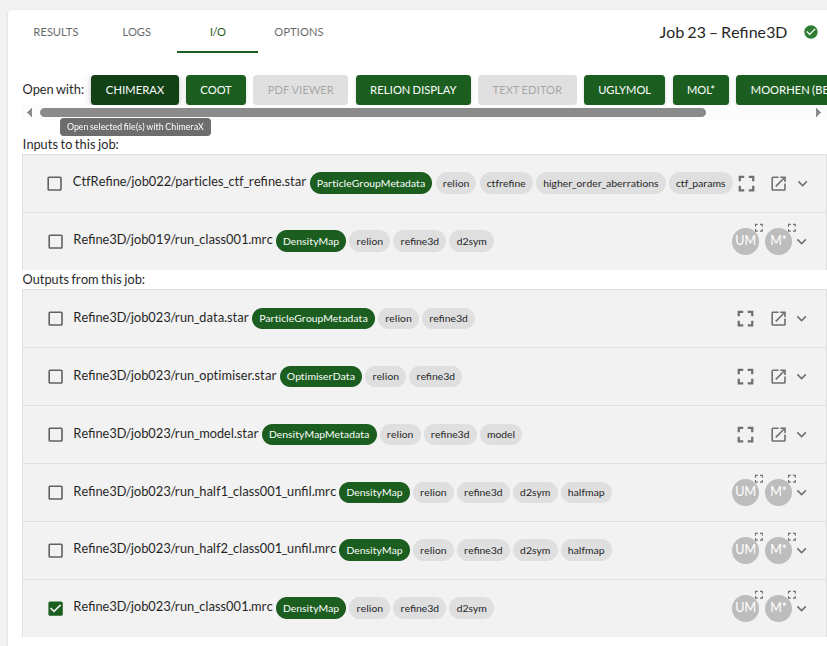
Open the I/O tab and find run_class001.mrc file (usually at the end of the list). Tick the box on the left next to the file name, and press CHIMERAX button at the top bar.
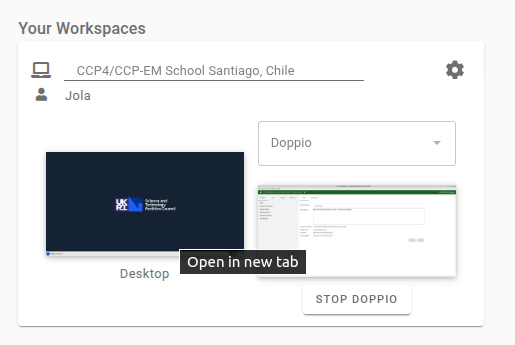
Next navigate to your ADA training platform and select the virtual desktop preview (to the left of Doppio).
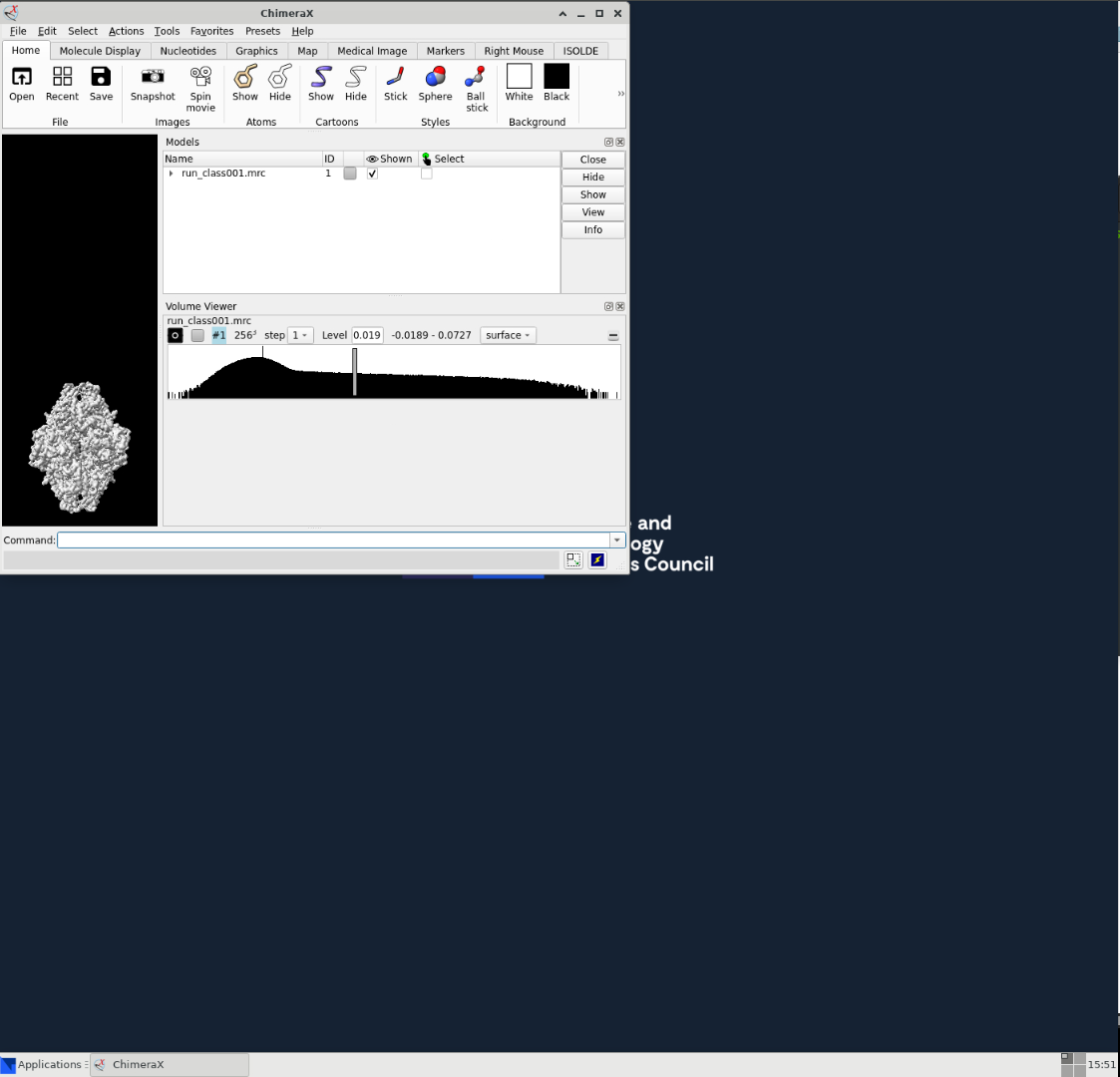
This will launch a new tab with a virtual desktop. Wait a minute until the display launches ChimeraX automatically.
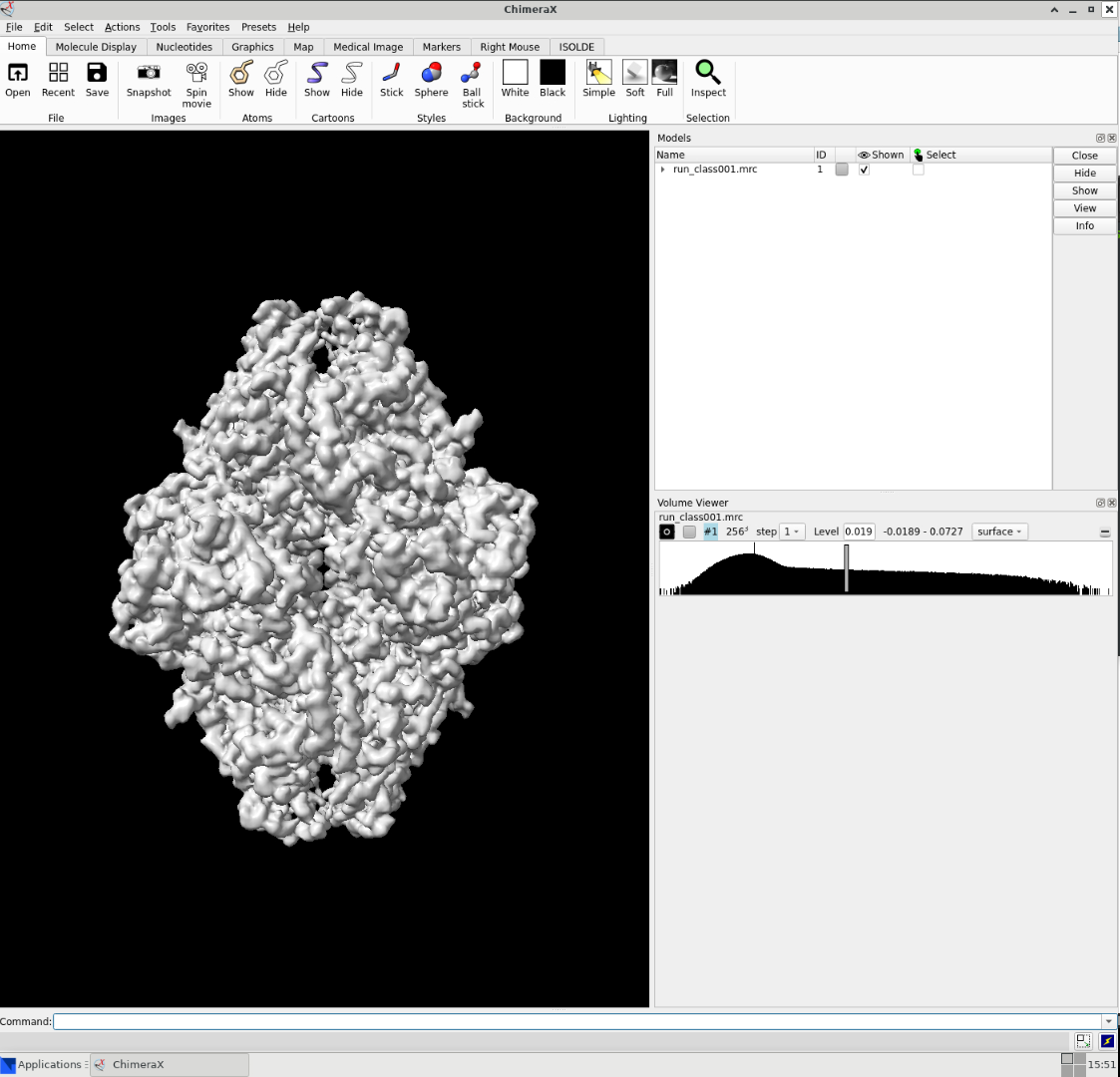
After expanding the window to full screen, you should be able to inspect the map.
Download the data from ADA interface to view locally
Navigate to your ADA training platform and select Data from the left hand menu panel.
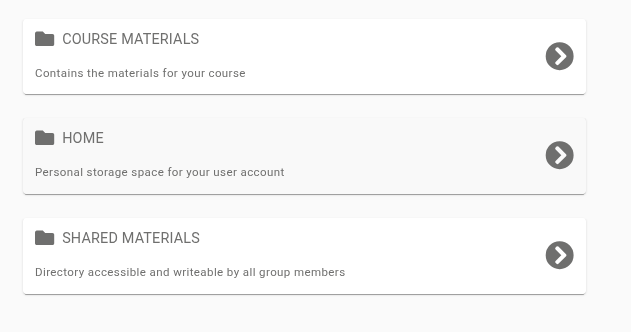
Then select HOME. You will see a window like this.
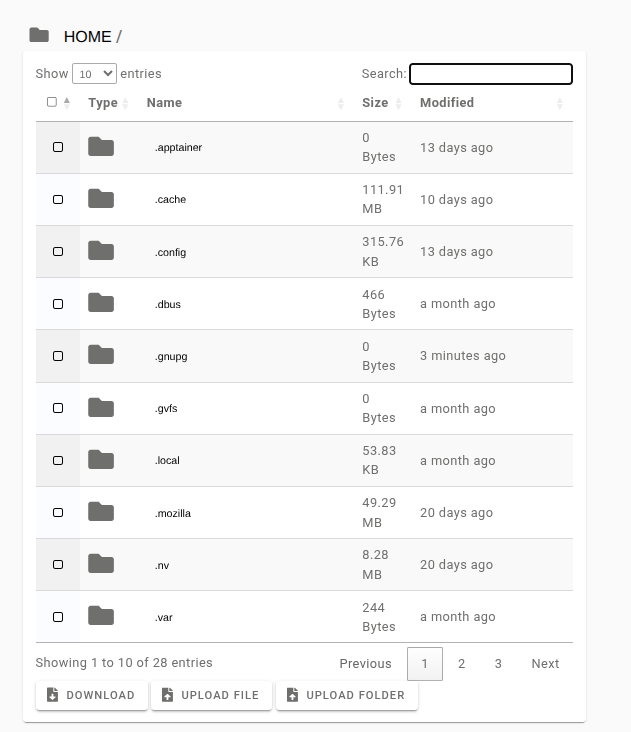
In the search bar on top right type: doppio. That should narrow down the display results to our Doppio project files. Click on doppio_projects.
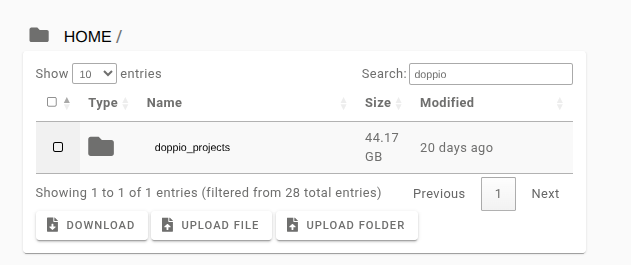
Then type refine into the search bar. Click on Refine3D.
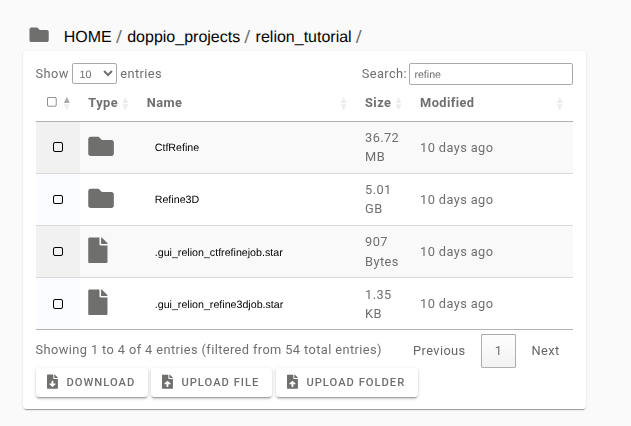
Then select the job you want to view. Finally, inside the job type run_class001.mrc into the search bar. Tick the box next to it and press Download button at the bottom of the page.
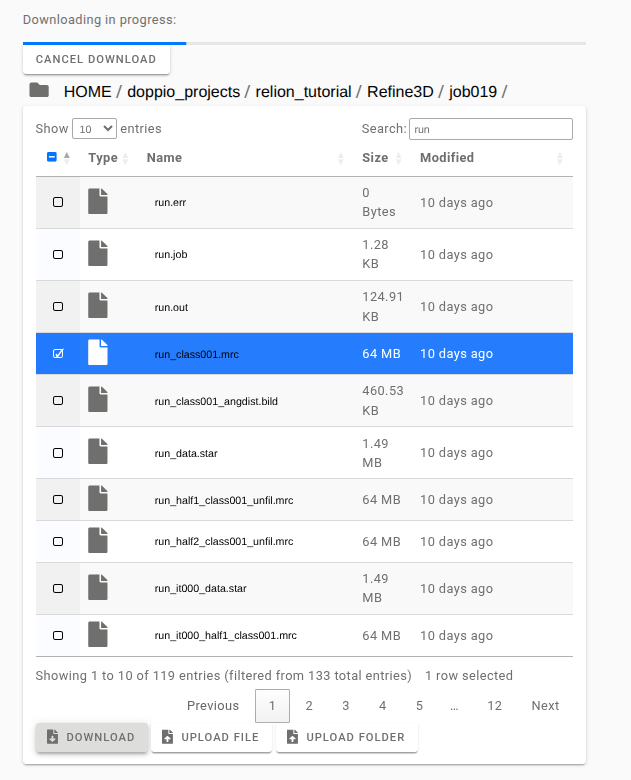
It should show you progress of the download. Once that is complete you can view the map with the software available on your local machine.